
Secure Your Connection with a WiFi Protection App
· Updated 2026-09-09 · By iLove VPN Editorial Team
Secure Your Connection with a WiFi Protection App: what to check on the router, device and VPN route before changing random settings.
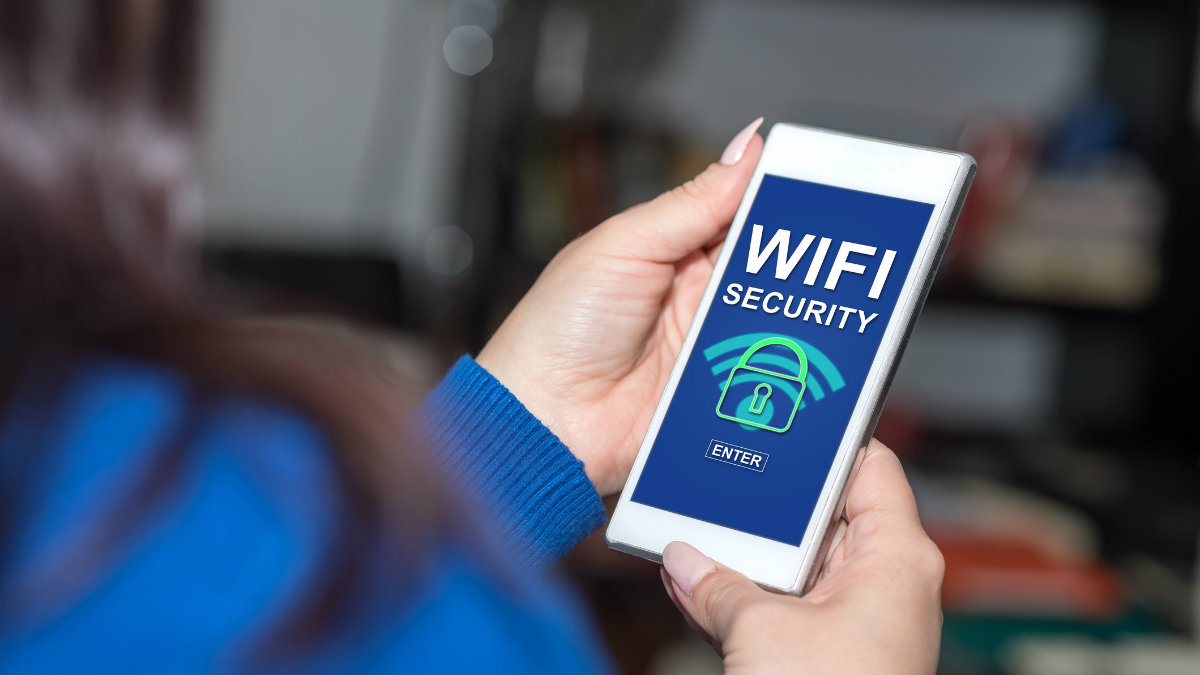
Start with one clean test
Test near the router, compare mobile data and finish any hotel or airport sign-in page before connecting VPN. If the baseline connection already drops, fix that first. Write down what happened before touching another setting; that matters for this Wi-Fi check.
What is happening underneath
Wireless trouble often begins before VPN: weak signal, crowded channels, an old router or a captive login page. Encryption cannot recover packets that never travel reliably between the device and access point.
The VPN part
Once Wi-Fi is stable, a VPN reduces what the network operator can learn about destinations and DNS activity. This matters most on networks whose owner and settings you do not know. That is the useful boundary in this case.
Do not expect this
A strong Wi-Fi password protects access to the local network; it does not make the operator trustworthy. Conversely, a VPN protects the route but cannot improve poor radio coverage.
A two-minute check
Keep the first test small: note the current result, connect iLove VPN, reload once and wait two minutes. For this Wi-Fi check, a second country is useful only when it tests a real location rule. Random switching hides the cause.
Use a safer route
iLove VPN protects public Wi-Fi, hides your visible IP and adds Stealth Mode for networks that block normal VPN traffic.